
Summary note: This is a summary of Hisashi’s (@hisashispace) article on dev.to, “How I Run My Business With AI Employees on Claude Code, and the Three Files Behind It” (27 November 2026), not a reprint of the original. Original link: https://dev.to/hisashispace/how-i-run-my-business-with-ai-employees-on-claude-code-and-the-three-files-behind-it-1p89
Note: when checked (28 November, around 09:00), x.com returned HTTP 403 across the site, so related discussion posts could not be opened; the details, figures and code here follow the dev.to article. The code and configuration files are quoted from the author (configuration code, not prompts); the rest is a summary in my own words.
Search for “AI employees” and you will find a lot of mock-ups, courses and demos. Hisashi says he runs a company with dozens of AI employees on his Mac, and he made a video about how he does it. This article has what the video has no room for: the three files that make an AI employee real, a starter you can copy, the rules as Claude Code’s official docs state them today, the numbers from his own machine, and what he did not test.
He has run his own company in Japan for 22 years, and has worked in IT for more than 20. The numbers below come from his Mac and from the official pages, which he read on November 10, 2026. His Claude Code is version 2.1.321.
The short version
- Many “AI employees” posts are a pretty diagram with no results, and many end with a course to sell. He shows numbers instead.
- Each job gets its own folder with its own rules, so each AI employee knows its job and nothing else.
- Every mistake he catches becomes a rule that a machine checks. The fake versions rely on luck. His relies on checks.
- Three files cover the first version: CLAUDE.md (what to do), settings.json (what is allowed), and a hook script (what is enforced).
- Rules on paper get forgotten. Rules in code don’t.
- Start with the handbook. Then add one rule every time Claude makes a mistake.
The setup behind them is simple to describe: one folder per job, such as Blog, Threads, YouTube and Accounting, each with its own rules. Every mistake he catches becomes a rule that a machine checks.
The three files
| File | The question it answers | Does it enforce anything? |
|---|---|---|
| CLAUDE.md | What is this job, and how should it be done? | No. It is context that Claude reads. |
| settings.json | What may it do without asking, and what is off limits? | Yes, for the tools it names. |
| A hook script | Is this exact action allowed right now? | Yes. It is your own code, and it can block. |
1. CLAUDE.md: the written job
The official memory docs say CLAUDE.md is context, not enforced configuration. Claude reads it at the start of every session and tries to follow it, and that is all.
Where it lives, according to the docs:
~/.claude/CLAUDE.mdfor you, in every project./CLAUDE.mdor./.claude/CLAUDE.mdfor the project, shared with your team./CLAUDE.local.mdfor your private notes in one project
The docs say to aim for under 200 lines per file, because longer files use more context and Claude follows them less well. They also support @path/to/file imports, but imported files load together with the file that imports them, so they organize a long file without making it cheaper.
His own project files are short. One is 48 lines and another is 45. Here is a starter that follows the three headings in the video:
# Weekly report job

## Who I work for
A small company. The reader is the owner. Plain English, no jargon.

## Never do
- Never send anything outside the company. Draft only.
- Never delete files. Move them to ./old/ instead.
- Never guess a number. If a number is not in ./data/, say it is missing.

## How to report
Start with the result in one line. Then the files you changed.
The docs’ advice on when to add a line is the one he follows: when Claude makes the same mistake a second time, write it down.
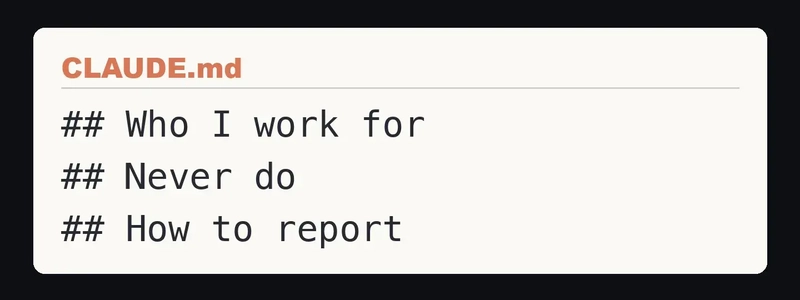 Image source: Hisashi’s article
2. settings.json: the list of what is allowed
Settings files are strict JSON, so no comments and no trailing commas.
From highest to lowest, the docs list the order as: managed settings, command line arguments, .claude/settings.local.json, .claude/settings.json, and ~/.claude/settings.json.
Permission rules are checked in the order deny, then ask, then allow, and the first match wins. So a broad deny beats a narrow allow. An allow rule cannot carve an exception out of a deny rule.
A minimal file for the weekly report job:
{
  "permissions": {
    "allow": ["Read", "Bash(git status)", "Bash(git diff *)"],
    "ask": ["Bash(git push *)"],
    "deny": ["Bash(rm *)", "Read(./.env)"]
  }
}
His has 89 allow rules and 25 deny rules, and the default permission mode is set to auto.
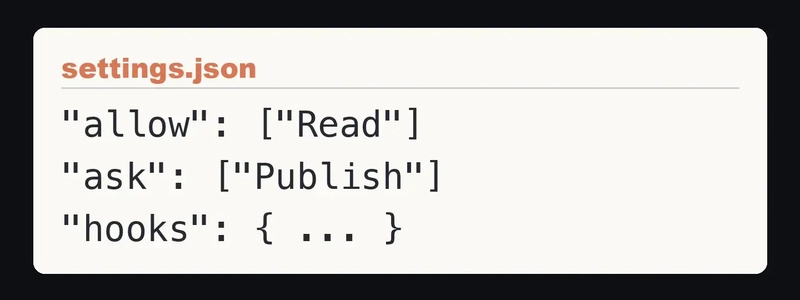 Image source: Hisashi’s article
3. A hook: the part that says no
A hook is a small script that Claude Code runs at a fixed moment, such as before a tool runs (PreToolUse), after it runs (PostToolUse), or when Claude finishes a turn (Stop). The script reads a JSON description of what is about to happen on its standard input.
The rule that matters, from the hooks docs: if a PreToolUse hook exits with code 2, the tool call is stopped before the permission rules are even evaluated, so the block holds even if an allow rule matches. Any other non-zero exit code, or output that is not valid, does not block. The action goes ahead. That is why a hook should end with exit 2 when it means no, not exit 1.
Here is a real one, shortened. On September 23, 2026, one of his agents ran find / -name prompt.md to look for a file whose location nobody had told it. The command walked external drives and network shares and kept the disk busy for minutes. He did not write “please do not do that” in a prompt. He wrote this:
#!/usr/bin/env python3
import json, shlex, sys
MSG = "BLOCKED: searching the whole disk. Search inside the project folder instead, for example: find . -name '<name>'"
try:
    cmd = json.load(sys.stdin).get("tool_input", {}).get("command", "")
except Exception:
    sys.exit(0)
try:
    tokens = shlex.split(cmd)
except ValueError:
    tokens = cmd.split()
scanning = False
for t in tokens:
    if t.rsplit("/", 1)[-1] in {"find", "fd", "bfs"}:
        scanning = True
    elif t in {"|", "||", "&&", ";", ">", ">>"}:
        scanning = False
    elif scanning and (t.rstrip("/") or "/") in {"/", "/Volumes", "/System", "/Library", "/Applications"}:
        sys.stderr.write(MSG + "\n")
        sys.exit(2)
sys.exit(0)
Save it as ~/.claude/hooks/block-root-scan.py, make it executable, and register it in settings.json:
{
  "hooks": {
    "PreToolUse": [
      {
        "matcher": "Bash",
        "hooks": [
          { "type": "command", "command": "python3 \"$HOME/.claude/hooks/block-root-scan.py\"" }
        ]
      }
    ]
  }
}
He ran the script by hand on November 10 before writing this section:
| Command given to the script | Exit code | Result |
|---|---|---|
find / -name notes.txt |
2 | Blocked, message printed |
find . -name notes.txt |
0 | Allowed |
ls / | head |
0 | Allowed |
The message is part of the design. Exit 2 sends the text on stderr back to Claude, so Claude reads “search inside the project folder instead” and does that. A good block message is a redirect, not a wall.
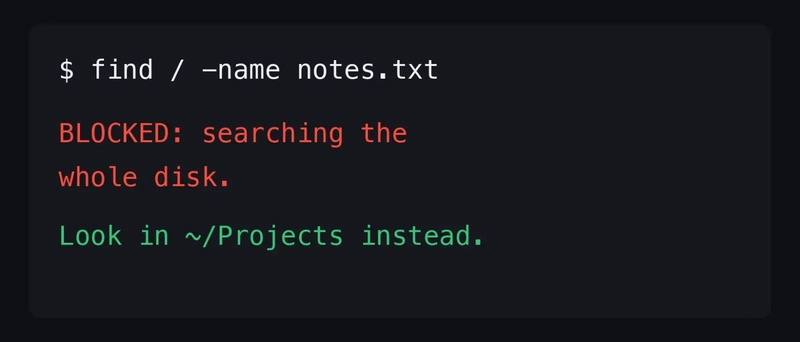 Image source: Hisashi’s article
Why a hook and not another line in CLAUDE.md
Because of the order of the checks. CLAUDE.md is read and weighed against everything else in the conversation. A hook is run. The first can be forgotten at line 400 of a long session. The second cannot.
His rule of thumb: the first time something goes wrong, write it in CLAUDE.md. If it goes wrong again, write a hook. The handbook says what to do. The settings say what it is allowed to do. The scripts make sure it actually follows. Rules on paper get forgotten. Rules in code don’t.
His numbers
| What | Number | Where it comes from |
|---|---|---|
| Hook entries in his user settings.json | 79 | Counted on November 10: PreToolUse 49, Stop 14, PostToolUse 7, UserPromptSubmit 5, SessionStart 2, Notification 1, SessionEnd 1 |
| Allow and deny rules | 89 and 25 | Same file, same day |
| Skills in his skills folder | 44 | Counted on November 10 |
| Blog page views, two months six months apart | 7,966 to 131,406 (16 times) | Google Analytics 4, as in the video |
| Threads views in 30 days on his Japanese account | 4,457 to 7,252,061 | Threads API, as in the video |
He does not claim the files caused the growth. The video says what he did and what the numbers were. This article only shows the files.
 Image source: Hisashi’s article
How to start today
- Pick one job you repeat every week. Not “run my business”. One report, one inbox, one checklist.
- Make a folder for it and put a CLAUDE.md in it with the three headings above.
- Put the starter permissions in
.claude/settings.jsoninside that folder, so it applies to that job only. - Run the job once. Watch what it does that you did not want.
- For each unwanted action, write one line in CLAUDE.md. When the same one happens twice, write a hook.
Start with the handbook. Then add one rule every time Claude makes a mistake. That is what real AI employees look like: not a picture of a team, but rules that run every single day.
What he did not test
- He did not test these files on Windows or Linux. His hook script uses Python 3 on macOS.
- He did not test the starter as a team setup with managed settings.
- He did not measure how much a long CLAUDE.md lowers adherence. He is quoting the docs.
- The block message in the video is a simplified version of what his real hook prints.
Who this is not for
- If you want an AI to run your business with no files and no rules, this is not it.
- If your job is one chat question a day, you do not need three files.
- If you cannot read a short JSON file, start with CLAUDE.md alone and add the other two later.
He has also written about running multiple Claude Code sessions in parallel, automating video editing with Claude Code, and how he splits work between Claude Code and Codex — all on hisashi.space.
Written by